Exploring Essential Tools for Dynamics 365 Plugins: Plugin Registration Tool

I am Maria-Anastasia, and I’m a software engineer and Microsoft IoT MVP.
I work remotely in the BEWISE, and I have a diploma in Computer Engineering and Informatics from the University of Patras.
Moreover, I love to solve problems, help others, and present new technology solutions.
Specialties: – Software Engineering – Internet of Things – Robotics – STEM Education / Teaching – Algorithms – Social Media Management – Digital Marketing
Also, I am a Gold Microsoft Learn Student Ambassador and I have the highest distinction in this community. I am one of 3 Gold Ambassadors in Greece and one of 98 worldwide. Additionally, I was one of 30 Student Partners that has been selected to attend the 2020 Student Partner Summit at Imagine Cup EMEA Regional Finals in Amsterdam. Moreover, I was won many robotics international competitions with Robotics Club UoP.
Visit my bio.link – The One Link for All Your Links: https://bio.link/maria
Intro
In the dynamic realm of Microsoft Dynamics 365 development, the ability to extend and customize the platform's functionality is paramount. One powerful tool that plays a crucial role in this process is the Plugin Registration Tool.
In this blog post, we will explore how the Plugin Registration Tool empowers developers to seamlessly integrate custom business logic into their Dynamics 365 applications.
Plugin Registration Tool
At the heart of Dynamics 365 plugin development is the Plugin Registration Tool. This tool, serves as a Swiss army knife for developers, providing essential functionalities to register, unregister, and manage plugins effortlessly.
Key Features and Functionalities:
Registration of Assemblies and Plugins: The Plugin Registration Tool facilitates the registration of custom assemblies and associated plugins within the Dynamics 365 environment. This step is vital for making the custom logic available to respond to the specified events.
Event Registration: Developers can use the tool to associate plugins with specific events triggered within Dynamics 365. This ensures that the custom logic is invoked at the right time, enabling seamless integration with the platform's native processes.
Secure Configuration Management: Security is a top priority in any Dynamics 365 implementation. The Plugin Registration Tool allows developers to manage secure configuration settings for plugins, ensuring sensitive information is handled with the utmost care.
Troubleshooting and Logging: When issues arise, robust troubleshooting capabilities are crucial. The Plugin Registration Tool provides debugging features that aid developers in diagnosing and resolving problems efficiently.
Installation
To use the Plugin Registration Tool, you first need to install it.
First, you could create a folder named “Tools” at the C:\Users\<user>.
Next, you have to open the Windows PowerShell.
Then, change the directory by typing the below command:
cd Tools
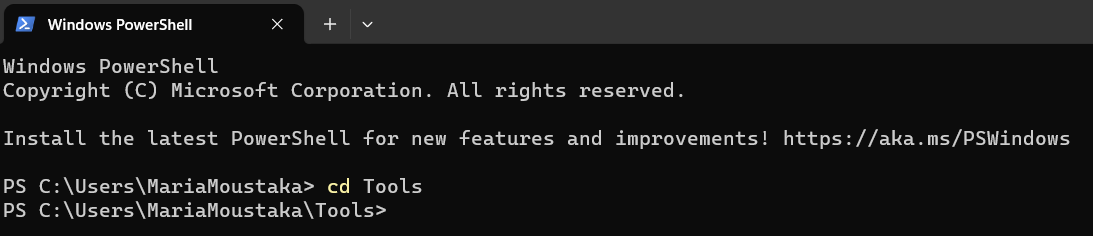
After that, copy and paste the following PowerShell script into the PowerShell window to download the required tools from NuGet. Press Enter to execute the script.
$sourceNugetExe = "https://dist.nuget.org/win-x86-commandline/latest/nuget.exe"
$targetNugetExe = ".\nuget.exe"
Remove-Item .\Tools -Force -Recurse -ErrorAction Ignore
Invoke-WebRequest $sourceNugetExe -OutFile $targetNugetExe
Set-Alias nuget $targetNugetExe -Scope Global -Verbose

##
##Download Plugin Registration Tool
##
./nuget install Microsoft.CrmSdk.XrmTooling.PluginRegistrationTool -O .\Tools
md .\Tools\PluginRegistration
$prtFolder = Get-ChildItem ./Tools | Where-Object {$_.Name -match 'Microsoft.CrmSdk.XrmTooling.PluginRegistrationTool.'}
move .\Tools\$prtFolder\tools\*.* .\Tools\PluginRegistration
Remove-Item .\Tools\$prtFolder -Force -Recurse

##
##Download CoreTools
##
./nuget install Microsoft.CrmSdk.CoreTools -O .\Tools
md .\Tools\CoreTools
$coreToolsFolder = Get-ChildItem ./Tools | Where-Object {$_.Name -match 'Microsoft.CrmSdk.CoreTools.'}
move .\Tools\$coreToolsFolder\content\bin\coretools\*.* .\Tools\CoreTools
Remove-Item .\Tools\$coreToolsFolder -Force -Recurse

##
##Download Configuration Migration
##
./nuget install Microsoft.CrmSdk.XrmTooling.ConfigurationMigration.Wpf -O .\Tools
md .\Tools\ConfigurationMigration
$configMigFolder = Get-ChildItem ./Tools | Where-Object {$_.Name -match 'Microsoft.CrmSdk.XrmTooling.ConfigurationMigration.Wpf.'}
move .\Tools\$configMigFolder\tools\*.* .\Tools\ConfigurationMigration
Remove-Item .\Tools\$configMigFolder -Force -Recurse

##
##Download Package Deployer
##
./nuget install Microsoft.CrmSdk.XrmTooling.PackageDeployment.WPF -O .\Tools
md .\Tools\PackageDeployment
$pdFolder = Get-ChildItem ./Tools | Where-Object {$_.Name -match 'Microsoft.CrmSdk.XrmTooling.PackageDeployment.Wpf.'}
move .\Tools\$pdFolder\tools\*.* .\Tools\PackageDeployment
Remove-Item .\Tools\$pdFolder -Force -Recurse

##
##Remove NuGet.exe
##
Remove-Item nuget.exe
The downloaded tools are now in the “C:\Users\<user>\Tools” directory.
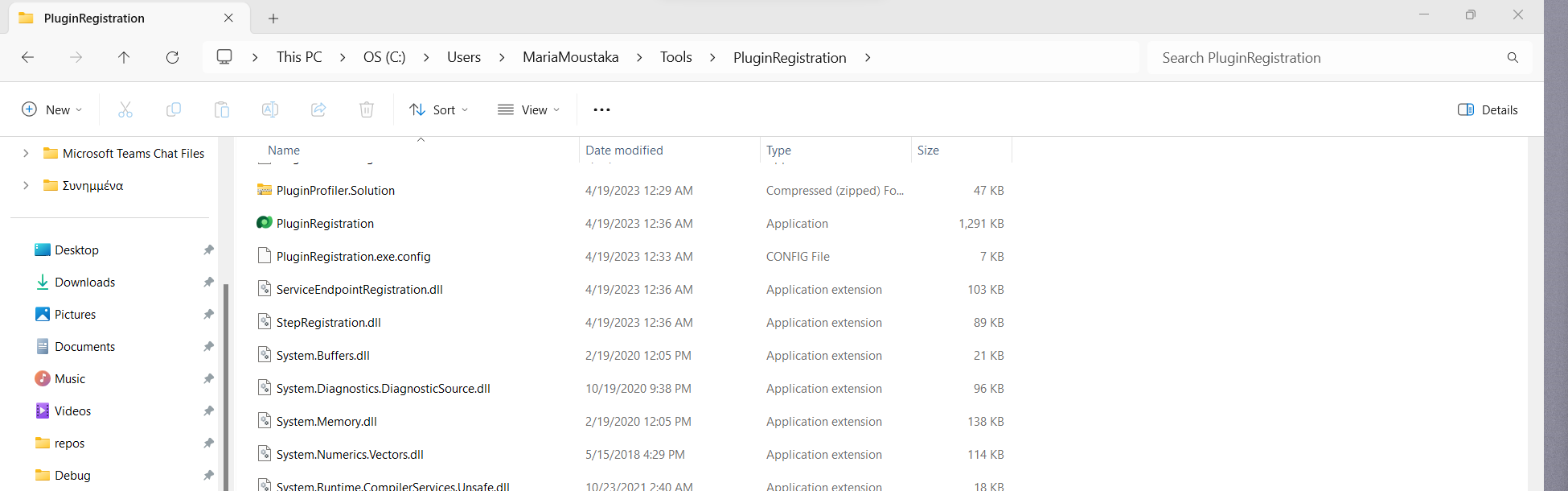
Finally, click the “PluginRegistration” and you are ready to use the “Plugin Registration” tool.
Specific Functionalities
Update
Logging to Plugin Trace Log
Profiler
Debug
Unregister
Register New:
Assembly
Package
Step
Image
Service Endpoint
WebHook
Data Provider
Custom API
Closing
The Plugin Registration Tool is a powerful tool that can help you develop and manage Dynamics 365 plugins. Following the tips in this blog post, you can use the Plugin Registration Tool to register your plugins correctly and ensure they are properly installed and configured.


